
Studio screen blackout for Mac
DarkStage Blackout US$19 + applicable local taxes · One-time purchase
macOS 12 or later · Intel and Apple silicon. Some features need a newer macOS: Mac System Sound, Device Outputs and the Automatic source need macOS 14.2; the Offline Wi-Fi Network, FL Studio sync, DarkStage MIDI and Launch at Login need macOS 13.
macOS
One-time purchase
Built for mix rooms and live rooms

The problem
Second displays, reference screens and laptops throw light and movement into your eyeline while you judge a reverb tail or ride a vocal.
Switching monitors off means waiting for them to wake, screen savers fire at the wrong moment, and in a dim live room even a menu bar breaks the mood.
Related: Add an on-screen recording light · Put meters on a blacked-out screen · Compare DarkStage editions
Blackout features
Blackout on every display
Black out one display or all of them: give up to six screens a shortcut each, or darken every screen at once with Blackout All, while the screens stay connected and arranged as they are. DarkStage Free covers the main display; DarkStage Blackout covers every display you connect.
Peek on Mouse Move
Reach for the mouse and the blackout fades so you can use the screen underneath. Reveal, Fade, Hold and Wake Delay set how quickly it clears and how long it stays away.
Meters when you want them
Some screens are more useful lit than hidden. Control Room adds a pair of analogue-style VUs, LED peak meters and three LUFS bars for momentary, short-term and integrated loudness to any display you have blacked out.

Room to add a recording warning
Move up to Control Room and connect your DAW, and the same dark screen can show the session position, transport buttons and a RECORDING IN PROGRESS warning. Blackout on its own has no DAW Sync.

A clock instead of a desktop
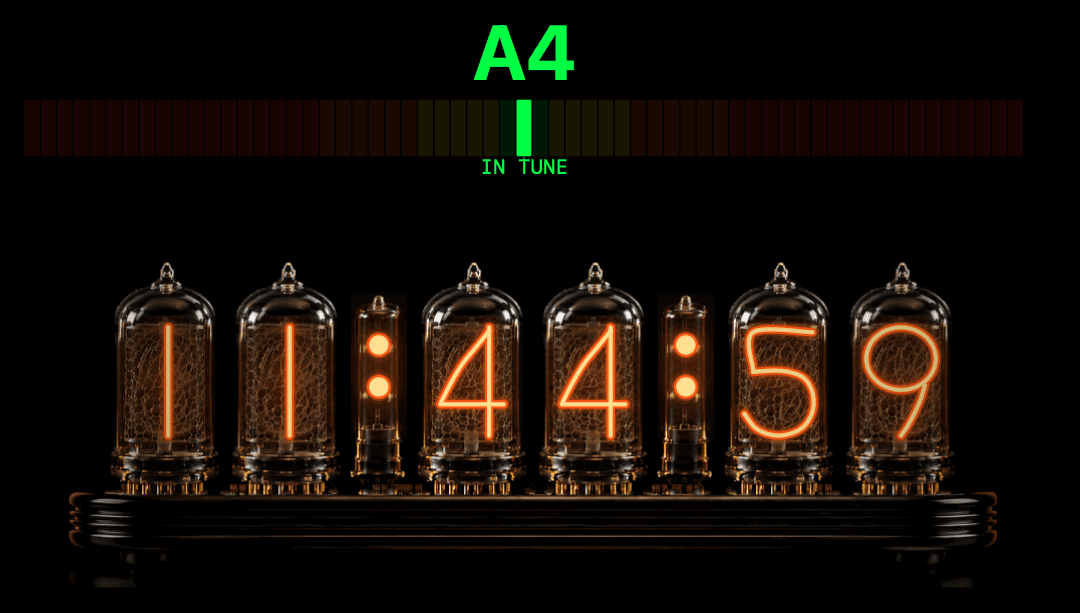
Put a Studio Clock on a blacked-out screen so the room still knows the time. The clock comes with DarkStage Blackout; the tuner shown above it needs DarkStage Control Room.
Keep one window in view
A Cutout is a see-through hole in the blackout. Click Position Window once to place a video, lyric sheet or plug-in window inside it. You get up to eight per display; the 3D spectrogram beside it needs Control Room.

Transparent mode and Peek
Transparent mode floats widgets over your normal desktop instead of a black background. Transparent Peek clears only the background when you move the mouse, so a clock or text box stays where it is.
Presets, banks and sharing
Save each room setup as a display preset and step through them with the Preset Looper, which holds five banks of up to four presets. Export a preset to share it, or import one from another studio.
DarkStage Blackout
Focused display control
DarkStage Blackout
Blackout for every display, plus presets, utilities, Cutout and every visualiser.
Everything in DarkStage Free, plus blackout on any number of displays and the Wired Displays editor. Upgrade inside DarkStage later and pay only the difference: US$80 to Control Room or US$130 to Studio.
US$19
+ applicable local taxes
Includes
• Blackout on any number of displays
• Peek on Mouse Move, Transparent Peek and Transparent mode
• Hide Cursor and Where’s My Mouse?
• Borders in your own style and colour
• Display presets, Preset Looper and preset sharing
• Text Box, Studio Clock, Image and Notepad
• Now Playing for Apple Music and Spotify
• Cutout: up to 8 see-through windows per display
• All 18 visualisers
• Perpetual licence for up to 3 Macs
Best for
Mix and mastering rooms, edit suites and live rooms with more displays than the work needs, where screens should stay dark until someone reaches for the mouse.
macOS 12 or later · Intel and Apple silicon. Some features need a newer macOS: Mac System Sound, Device Outputs and the Automatic source need macOS 14.2; the Offline Wi-Fi Network, FL Studio sync, DarkStage MIDI and Launch at Login need macOS 13.Compatibility · Getting started
Compare all editions →
Workflow
01
Pick the screens
Open DarkStage, select each display you want dark and give it a blackout shortcut of its own (up to six), or use Blackout All.
02
Tune Peek on Mouse Move
Turn on Peek and adjust Reveal, Fade, Hold and Wake Delay until the screen clears and returns at a pace that suits you.
03
Hide the pointer
Turn on Hide Cursor for each blacked-out display, and use Where’s My Mouse? when you lose the pointer between screens.
04
Save the room as a preset
Store the setup as a display preset, then add it to a Preset Looper bank so one shortcut moves between tracking and mixing layouts.
All prices are in USD and one-time, plus applicable local taxes, which CREEM, our authorised reseller and Merchant of Record, calculates at checkout from your location. The full total is shown at checkout before you pay. Each licence is perpetual and activates on up to 3 Macs.
Email newsletter
STAY IN THE LOOP
Get DARKSTAGE release notes, new features and product updates.
This is our marketing newsletter. Subscribing does not send you a download link. We’ll email you to confirm your subscription, and you can unsubscribe at any time.
Download the free 30-day trial →