Setup Guide
DarkStage can follow the transport and timeline position of Pro Tools and Logic Pro using HUI, MIDI Time Code and MIDI Machine Control.
Before beginning
•
Install and launch DarkStage.
•
Open DAW Sync in DarkStage.
•
Confirm that DAW Sync is running.
•
Leave DarkStage open while configuring your DAW.
Pro Tools Setup
1. Enable the DarkStage MIDI input
In Pro Tools, open:
Setup → MIDI → MIDI Input Devices
Enable:
DarkStage HUI 1 In

2. Add the HUI controller
Open:
Setup → Peripherals → MIDI Controllers
In next available slot, add a controller using:
•
Type: HUI
•
Receive From: DarkStage HUI 1 In
•
Send To: the corresponding DarkStage HUI output

3. Set the MTC Generator Port
Still in Peripherals, open the Synchronization tab. Set:
MTC Generator Port → DarkStage MTC Receive

4. Enable MIDI Machine Control
Open the Machine Control tab. Enable MIDI Machine Control and select:
DarkStage MTC Receive
Click OK to close the Peripherals window.

5. Enable Machine Follows Edit Insertion/Scrub
Open:
Pro Tools → Preferences → Synchronization
Under Machine Control, enable or select:
Machine Follows Edit Insertion/Scrub
In testing, either related Machine Control dropdown selection worked. This allows DarkStage to follow edit-location changes and timeline scrubbing as well as normal playback.

6. Enable GEN MTC
Click the GEN MTC button so that it is highlighted.
Important
This step is essential. Pro Tools may send play, stop and locate commands without sending rolling MIDI Time Code when GEN MTC is off.

9. Press Play
Press Play in Pro Tools. DarkStage should now follow:
•
Play and stop
•
Timeline position
•
SMPTE timecode
•
Edit insertion and scrub locations
•
Pro Tools transport status
Pro Tools troubleshooting
Transport works but SMPTE does not roll
Check that GEN MTC is highlighted in the Pro Tools Transport window.
DarkStage does not respond at all
Confirm:
•
DarkStage DAW Sync is running.
•
DarkStage HUI 1 In is enabled under MIDI Input Devices.
•
The HUI controller is assigned correctly.
•
MTC Generator Port is set to DarkStage MTC Receive.
•
MIDI Machine Control is enabled.
•
Machine Follows Edit Insertion/Scrub is enabled.
Logic Pro Setup
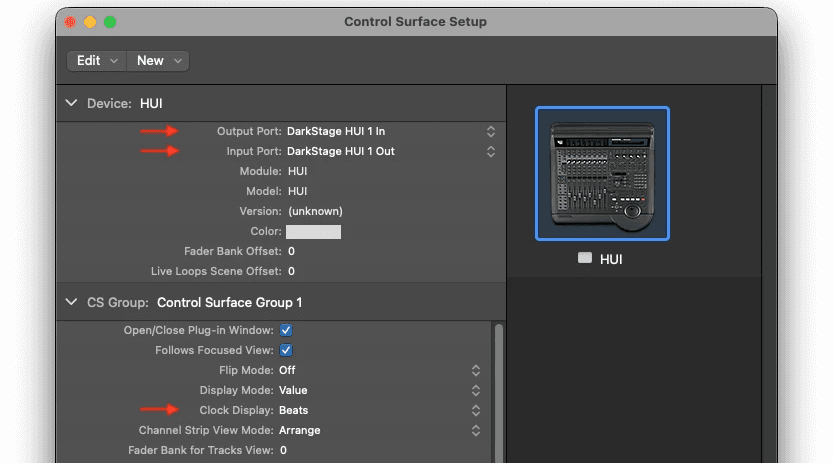
1. Add a HUI control surface
In Logic Pro, open the Control Surfaces setup window. Add a HUI control surface and assign the DarkStage HUI input and output ports.
Logic Pro Menu → Control Surfaces→ Setup

2. Add HUI Device
Type HUI in the search box. Choose the HUI device from the list and hit add. Close the window..
Search HUI → Select HUI → Add →Close

3. Set The HUI io & Clock Display
In DarkStage’s DAW Sync settings, set:
Launch DarkStage and open DAW Sync. Confirm that DAW Sync is running before opening or configuring Logic Pro.
Clock Display → Beats
This provides the correct bar-and-beat counter behaviour while Logic is running.
4. Transmit MIDI Time Code
Open Logic Pro’s:
File → Project Settings → Synchronization → MIDI
Enable MIDI Time Code & Machine Control transmission. Set the destination to:
DarkStage MTC Receive

5. Press Play
Press Play in Logic Pro. DarkStage should now follow:
•
Play and stop
•
Timeline position
•
Bar and beat position
•
SMPTE timecode
•
Logic transport status
Logic Pro troubleshooting
If HUI transport works but the time display does not move, confirm that:
•
MIDI Time Code transmission is enabled.
•
DarkStage MTC Receive is selected as the destination.
•
MIDI Machine Control transmission is enabled.
•
DarkStage DAW Sync is running.
•
Clock Display is set to Beats.
Need more help?
If you get stuck, contact us and we’ll help you get set up.
Professional macOS tools for studios and DAW workflows.
Product
Company